Connection policies
Connections provide access to external networks — the Internet and all others over Ethernet, 3G/4G, ADSL / VDSL, Wi-Fi, VPN. Keenetic routers support multiple simultaneous connections (usually called Multi-WAN). In such cases, priorities determine the order in which connections are used. The highest priority makes the connection the default one.
Note
When you turn on the router, the default gateway will be the Internet connection gateway with the highest priority. If your Keenetic has multiple connections and the default connection fails, the gateway will be the next priority available connection with Internet access.
You can increase or decrease the priority of any connection in the web interface by simply dragging and dropping the name in the list. In addition to the Default policy with all connections, you can create others. They may only include the specific connections you need, with their priority setting, and be bound to specific home devices and network segments. In other words, this feature is called Policy-Based Routing (PBR).
By default, all unregistered devices in the basic Home and Guest segments are bound to the default policy. You can also create your own segments, such as your children's devices or smart home appliances. Any network client can be registered, and then it can be individually bound to the desired connection policy. Binding is also done by dragging the device or segment onto the policy.
Home users can appreciate PBR when solving the following actual problem: letting specific devices in the network go through a VPN connection and the rest — through the main ISP. Also, it opens up the possibility of load balancing when using 3G/4G modems with traffic limitations.
Configuration of priorities and policies can be found in the web interface on the Connection Policies page.
Let's take an example of a Keenetic router that uses multiple connections to the Internet. An ISP provides a default connection over a leased line, and in addition, the router establishes an IKEv2 VPN connection, through which the Internet is also available. You need to configure all home clients to connect to the Internet via the primary connection, and a single device (host named PS4pro) will use the VPN connection to connect to an external network.
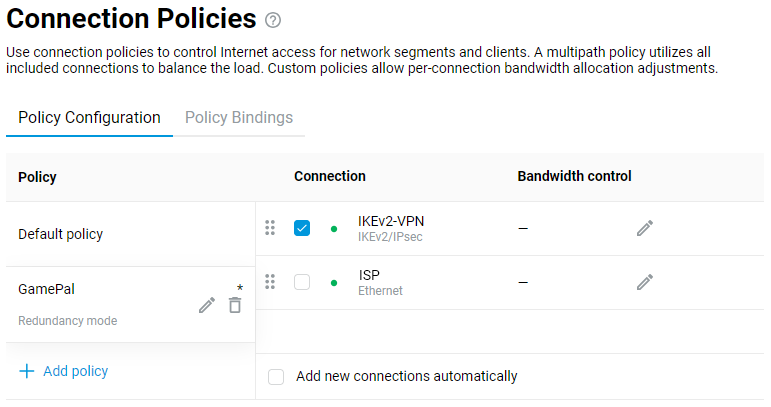
A separate Internet connection policy must be configured. On the Connection Policies page, on the Policy Configuration tab, click + Add policy and enter the name of the new policy. Here, a policy is a set of routing rules that apply to traffic from hosts when they access the Internet.
Note
A maximum of
16policies can be created in KeeneticOS.In our example, the added policy (
GamePal) is intended to provide access only through an IKEv2-VPN connection.On the right side of the Connection column, you only need to check this connection and save the settings.
Also, on the Connection Policies page, click the Policy Bindings tab. The Show all objects option allows you to display all the clients registered in the local segments of your Keenetic router, as well as the local network segments themselves.
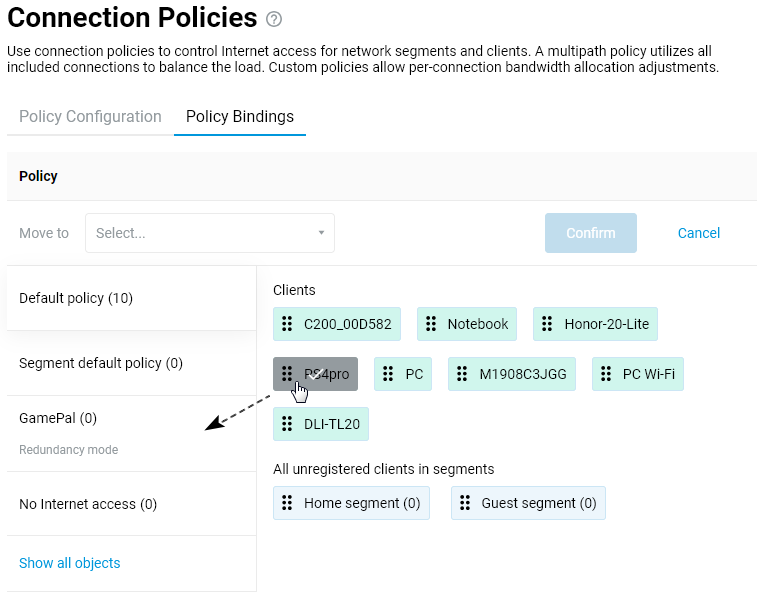
You can select multiple objects with the mouse. In our example, we need only one object, the
PS4proclient, to be dragged and dropped onto the previously createdGamePalpolicy.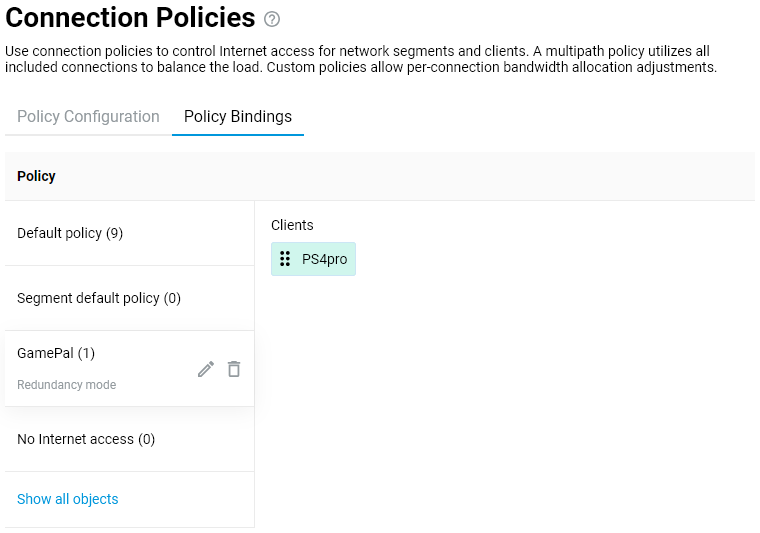
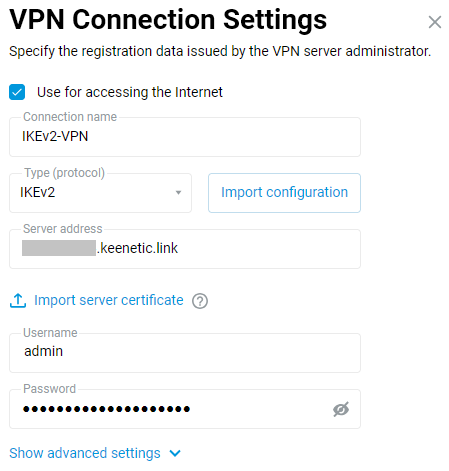
This completes the configuration. Make sure that the IKEv2-VPN connection used in the policy is enabled and configured to access the Internet (the Use for accessing the Internet option is enabled). This can be done on the Other Connections page.
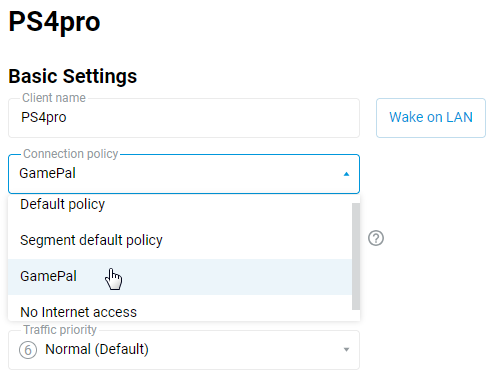
Now that the
PS4prodevice needs to connect to the Internet, the router will send its request over an IKEv2-VPN connection. All other devices on the router's LAN will be connected to the Internet via the primary connection.If necessary, you can check or change the connection policy of each client on your Keenetic device's network on the Client Lists page.
Note
Only DNS servers obtained from connections in the policy are added to this policy. The same applies to any additional DNS server that was added manually for a specified interface. If a custom DNS server is added without specifying an interface (the Connection field is set to Any), it is used by all policies.
By default, a Keenetic router prohibits using DNS servers received on an interface not included in a policy. If the same DNS address is received on different interfaces, it can be used only for the main connection.
With the Connection Policies mechanism, it is also possible Using multiple WAN connections in load balancing mode (configuring from the CLI).
Tip
In KeeneticOS, you can associate an interface with a specific connection policy. This can be done using the ip hotspot policy command in the command-line interface (CLI) or the Web CLI of the router. For example, this association can be applied to Wireguard or Openvpn interfaces.
Here is an example of commands to bind the Wireguard0 interface to Policy0:
ip hotspot policy Wireguard0 Policy0
system configuration save
Instead of Wireguard0 and Policy0, specify the interface and access policy used in your router’s configuration. You can view the configuration using the sh ru command. sh ru command.
If the router uses multiple WireGuard connections, the first one will be named Wireguard0, and the subsequent ones will be named Wireguard1, Wireguard2 and so on. The same applies to the names of access policies (Policy0, Policy1 and so on).