Internet connection via PPPoE
PPPoE is most commonly used when connecting to the Internet over ADSL / VDSL, but sometimes this connection type is also used by ISPs providing Internet over a dedicated Ethernet line.
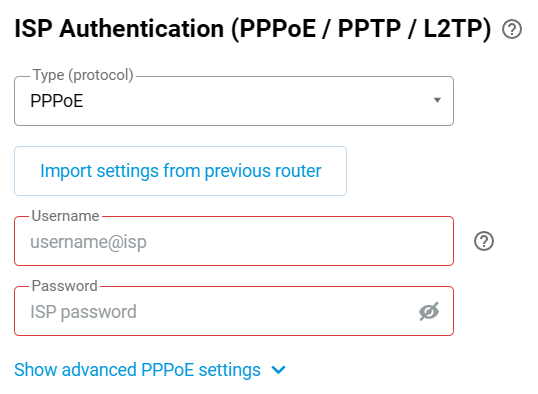
On the Ethernet Cable Connections to Internet page, under ISP Authentication (PPPoE / PPTP / L2TP), enter PPPoE in the Type (protocol) field.
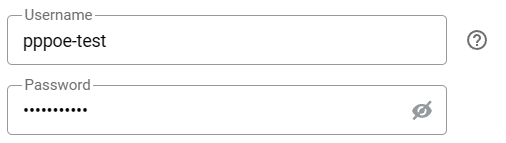
Then, in the Username and Password fields, enter the login and password for the Internet connection provided by your ISP.
Note
If you have forgotten your PPPoE username and password, you can automatically migrate these settings from your old router. This feature is available for Ethernet connections only and does not support DSL.
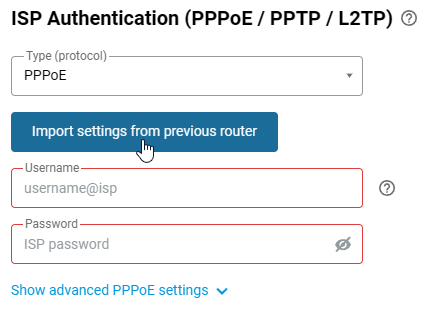
Click Import settings from previous router to begin migrating your connection data.
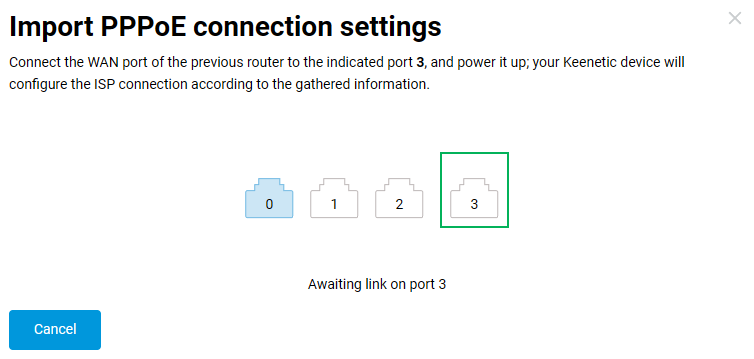
Use an RJ-45 cable to connect the WAN port of your previous router to the specified port on the Keenetic device. Then, power on the previous router.
Once the migration is complete, the username and password from the previous router will appear in the corresponding fields.
Click on Show advanced PPPoE settings to display fields with advanced settings.
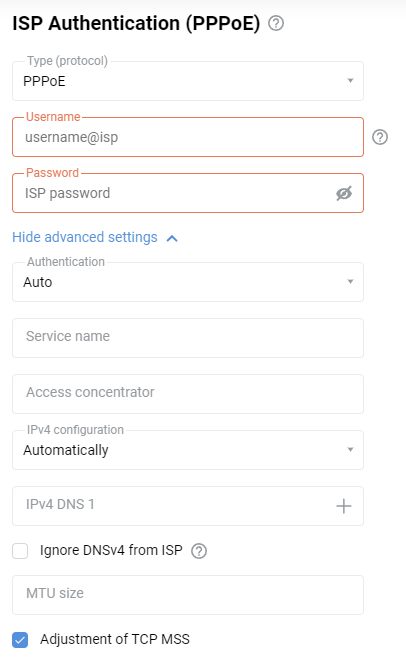
The Service name and Access concentrator fields are optional; leave them blank if your provider has not given you additional information.
Leave the IPv4 configuration field set to Auto if your ISP automatically assigns an IP address for Internet access.
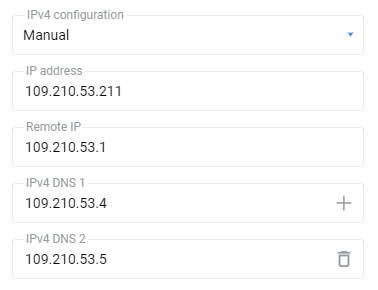
If your ISP has provided you with a fixed (static) IP address, select Manual in the 'IPv4 configuration field and specify the IP address and gateway address in the fields IP address and Remote IP that appear. For example:
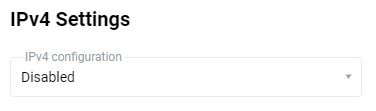
If your ISP neither issues nor requires an IP address to be assigned to your router's WAN interface, i.e. if its network does not have automatic IP address assignment, disable automatic IP address acquisition via DHCP on the WAN port. To do this, in the IPv4 Settings section of the IPv4 configuration field, specify Disabled.