How to enable ping responses in Windows 8/10/11
By default, Windows 8/10/11 operating systems disable responses to ping requests (incoming ICMP echo messages).
You can enable this feature using the method described below.
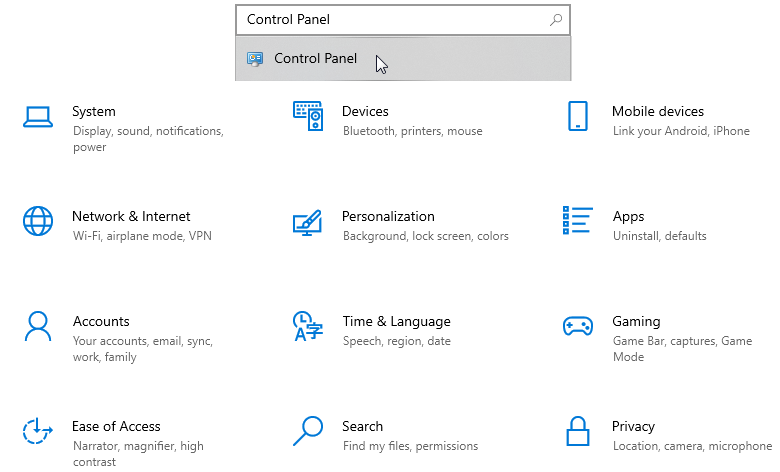
Press the Win + i keys on your keyboard. A window with Windows settings will appear. In the search bar, type Control Panel and then click on the Control Panel item.
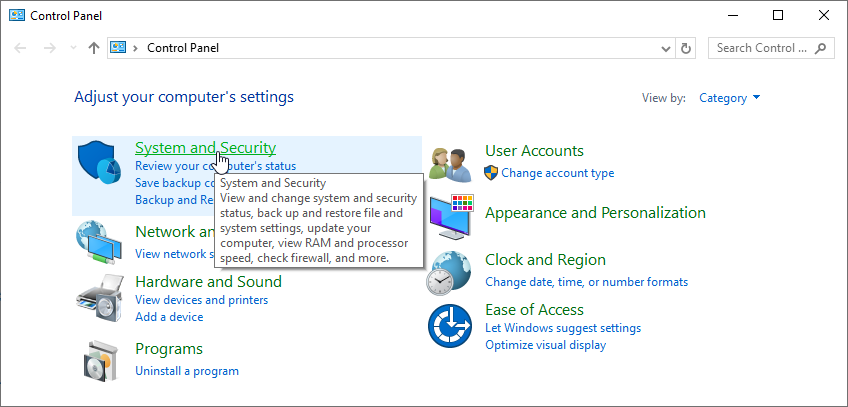
In the Control Panel window that opens, click System and Security.
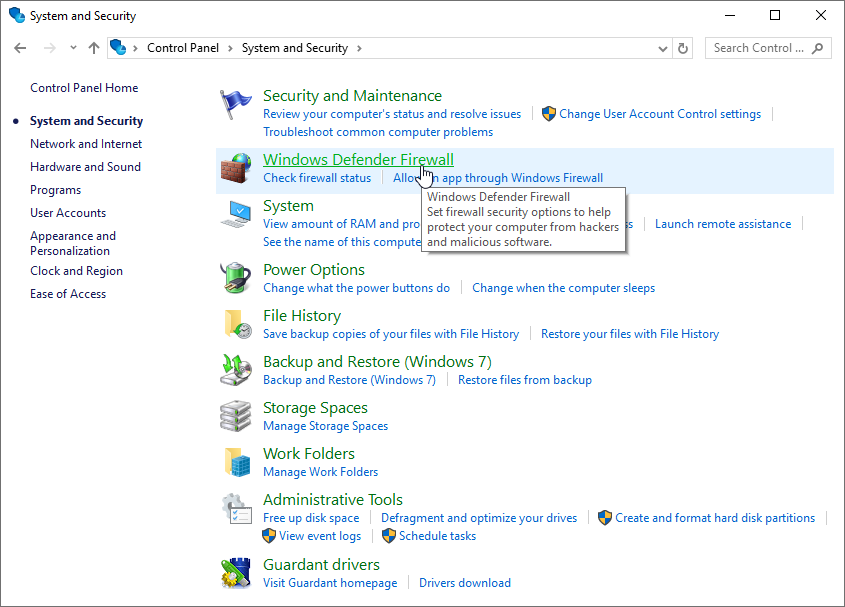
Then, in the System and Security menu, go to Windows Defender Firewall.
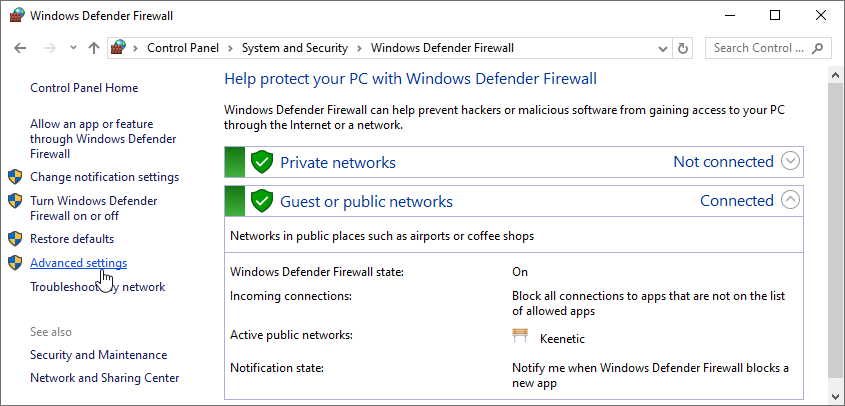
In the Windows Defender Firewall window, you can either disable the firewall (not recommended) or open the Advanced settings menu to access more detailed firewall settings.
In the Windows Defender Firewall with Advanced Security window that appears, click on Inbound Rules. In the list of rules, find and click on Virtual Machine Monitoring (Echo Request - ICMPv4-In), and then click on Enable Rule in the Actions column.
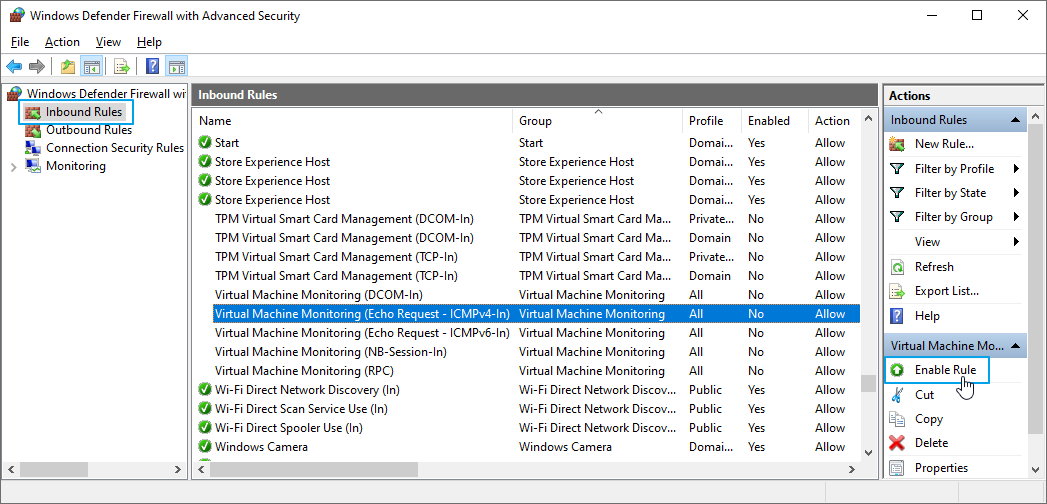
Now your computer running Windows 8/10/11 will respond to ping (ICMP echo requests) within the local network.