Keenetic Cloud
In addition to the Keenetic mobile application, there is a special web portal called Keenetic Cloud. Access to your devices will be possible not only through the application, but also through any web browser.
Important
The web portal's functionality does not fully duplicate the mobile app's capabilities. The web portal provides an additional way to access basic cloud settings available in the mobile app.
Currently, the Keenetic Cloud web portal is operating in test mode, so its functionality is subject to change.
A single Keenetic Account is used to access the Keenetic Cloud web portal and the Keenetic application.
Currently, you can add your Keenetic device to the web portal to manage it via the mobile app later, view customer connection status and traffic statistics, manage family profiles, set up notifications, turn apps on and off, restart devices, obtain a diagnostic file, view the system log, and install updates.
Connecting to Keenetic Cloud
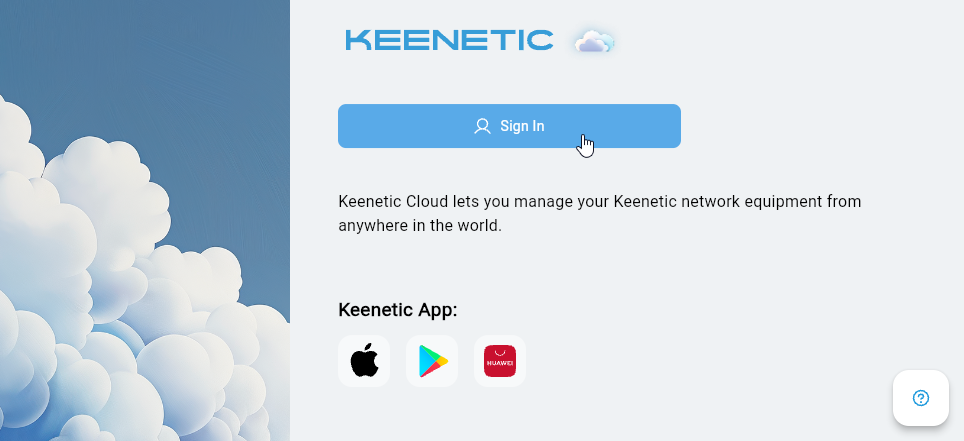
Launch your web browser and enter the portal address keenetic.cloud in the address bar.
You will see the web portal login page. Click Sign In.
Tip
If you use the Keenetic mobile application, you already have a user account. Enter the e-mail address and password you used when registering your account.
If you have not used the mobile application, register for an account.
Enter your E-mail and Password , then click Sign in.
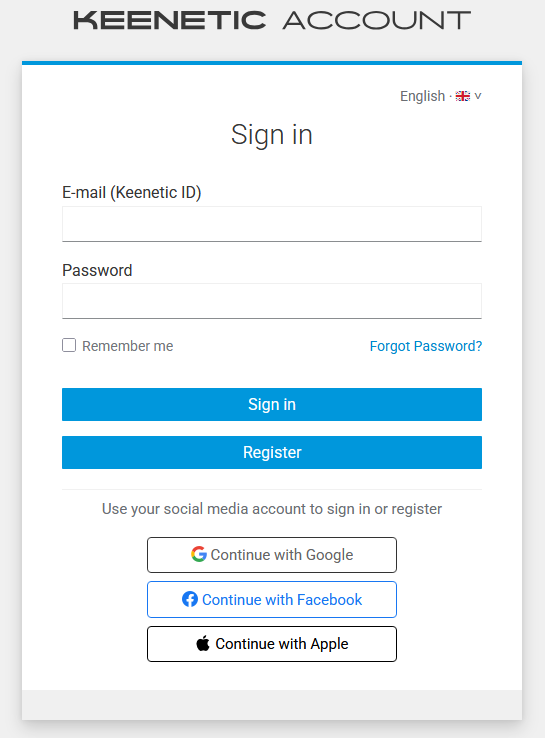
If you cannot remember your account password, click Forgot password?. In this case, an e-mail with instructions on how to recover your password will be sent to the e-mail address you provided.
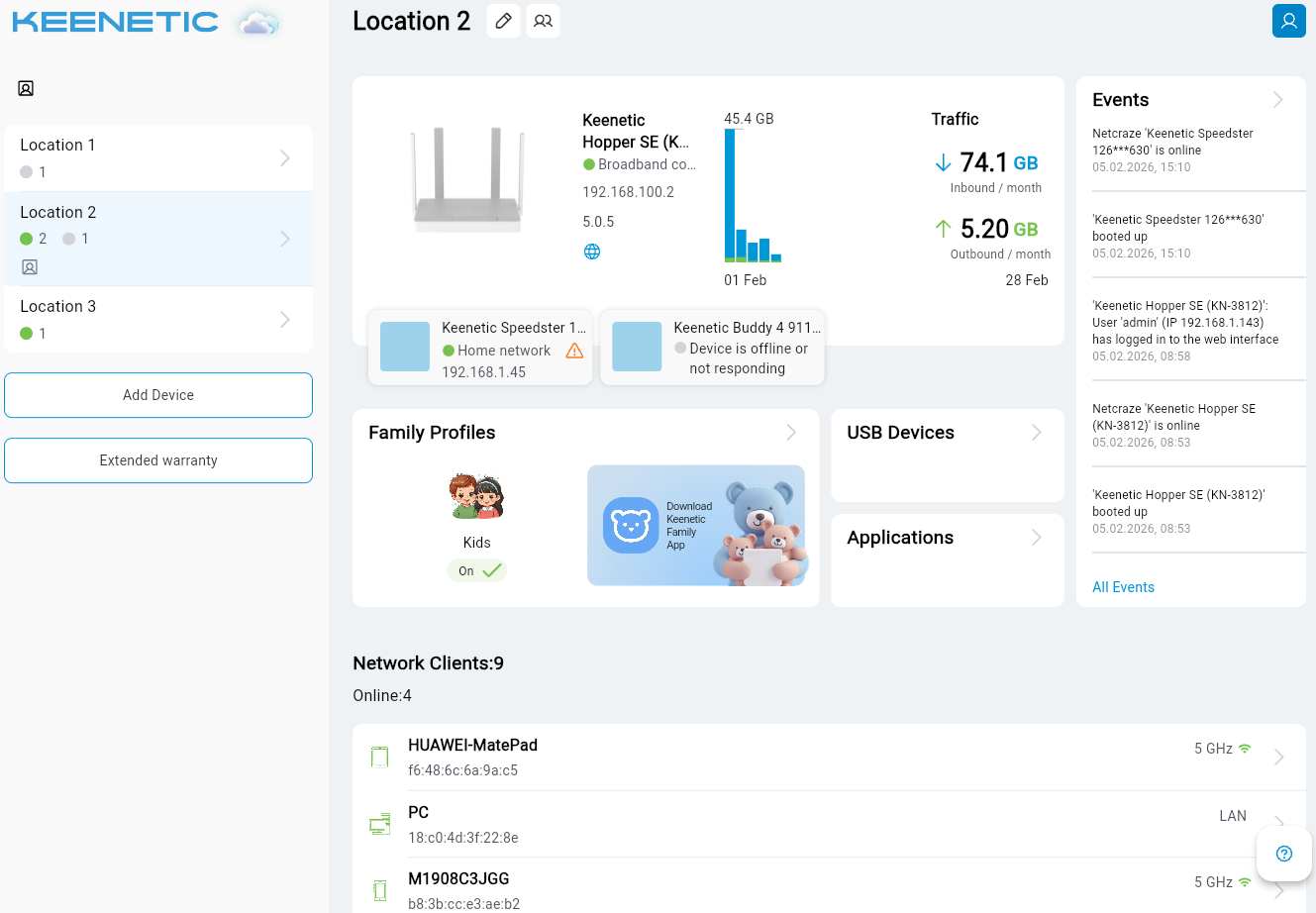
After connecting, you will see the main screen of your personal account on the Keenetic Cloud web portal. Devices that have already been added will be displayed here. You can view their current status (online/offline) and add a new device.
Adding a device
To add a new device, click the Add Device button.
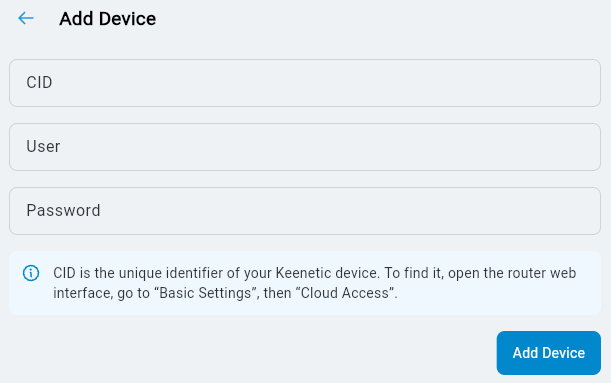
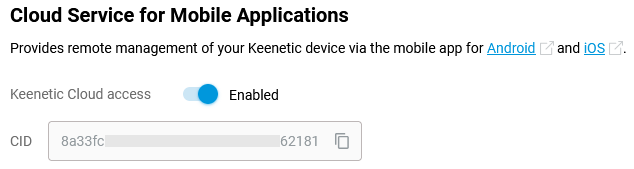
You will need the CID (unique cloud identifier) of the router you are adding. You can find it in the web interface, on the General System Settings page, in the Cloud Service for Mobile Applications section. For example:
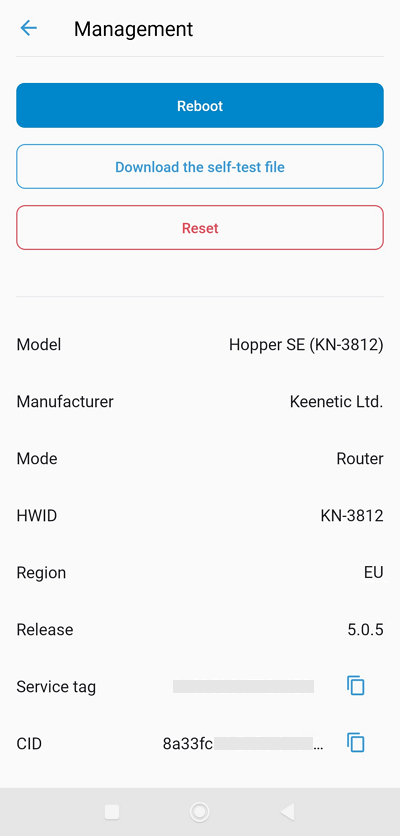
Or in the Keenetic application in the router settings in the Management menu:
In the Add Device window, enter the CID, as well as the username and password for the device's administrator account.
Changing the site name
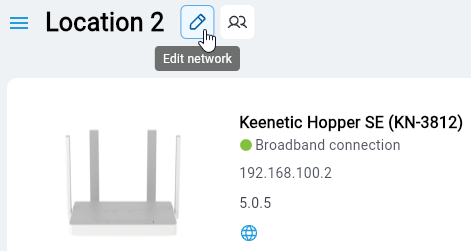
If necessary, you can change the site name and add a description (if you have many sites, this will simplify their identification). Next to the site name, click the Edit network button.
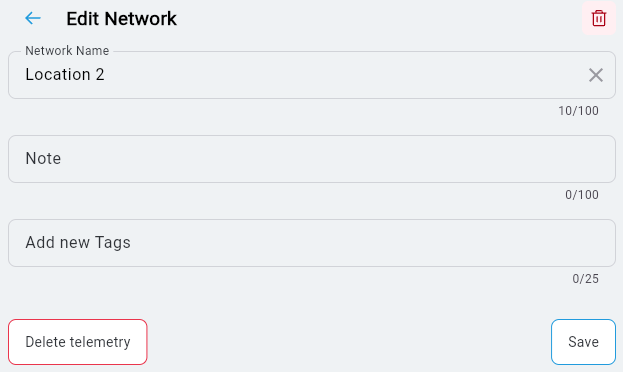
In the window that appears, enter a new name for the site. You can also add a short description and tags.
Traffic statistics
By clicking the device name, you can view detailed information about the device and general traffic statistics.
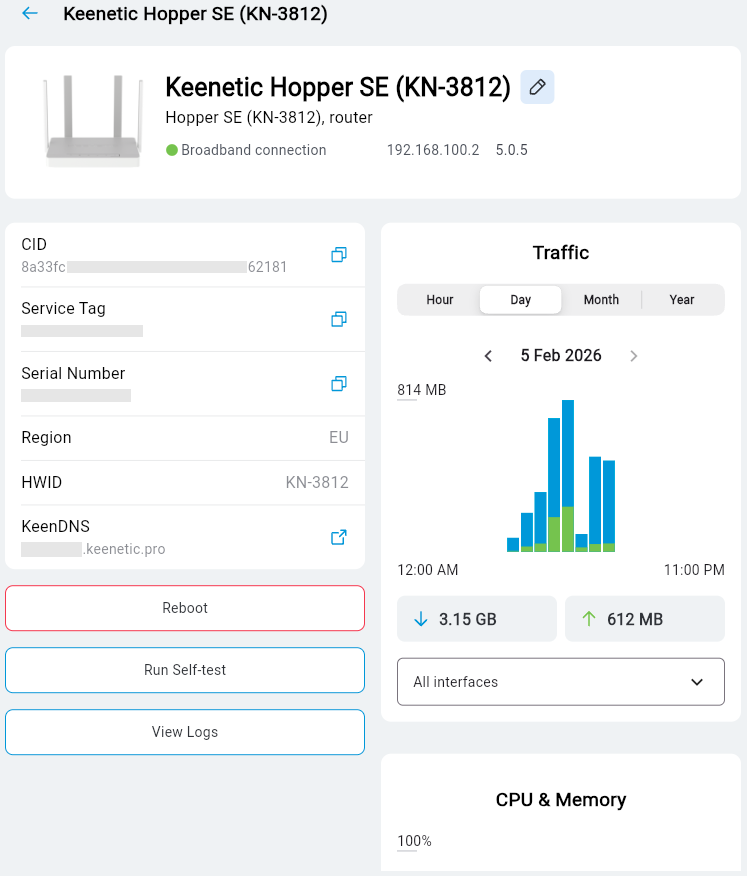
This section displays the device model, operating mode, WAN IP address, OS version, CID, service tag, serial number, region, and KeenDNS service domain name, if previously registered on the device via the web interface.
The Traffic section displays traffic consumption statistics. Information is presented for different time periods: Hour, Day, Month, Year.
Status of network clients
The Network Clients section displays a list of online and offline clients and their status.
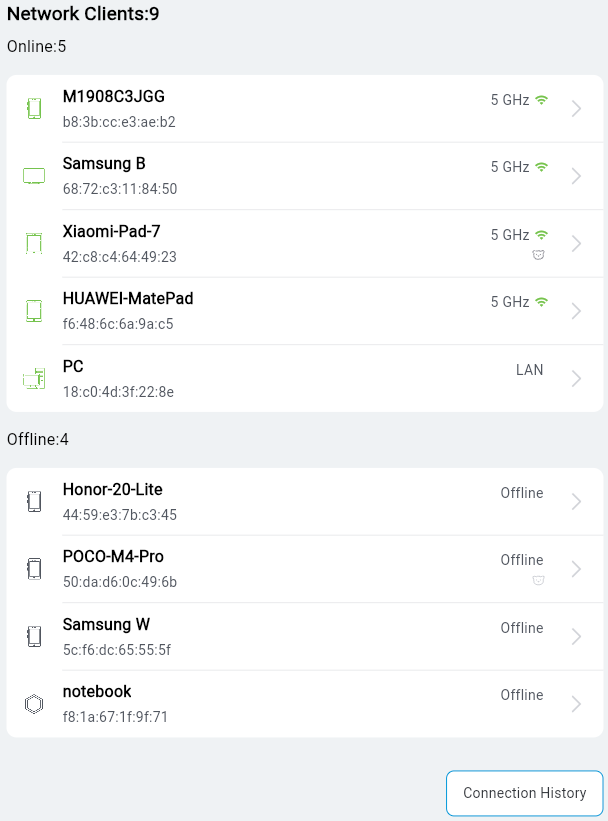
By clicking on a client's entry, you can view additional connection information and traffic statistics.
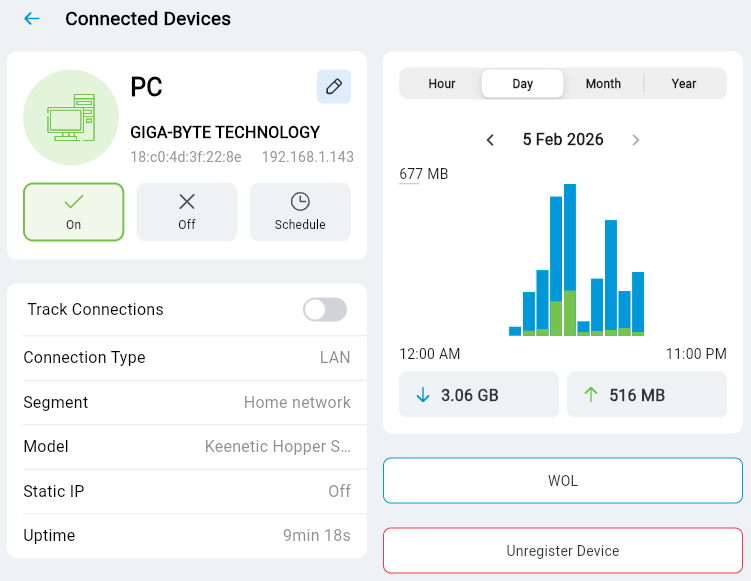
On the Connected Devices screen, you can disable and enable Internet access, select a work schedule, enable connection tracking (in this case, notifications will be sent when the client is disconnected and connected), and wake the computer using WoL.
Family profiles
By clicking on Family Profiles, you will be taken to the management of previously created family profiles.
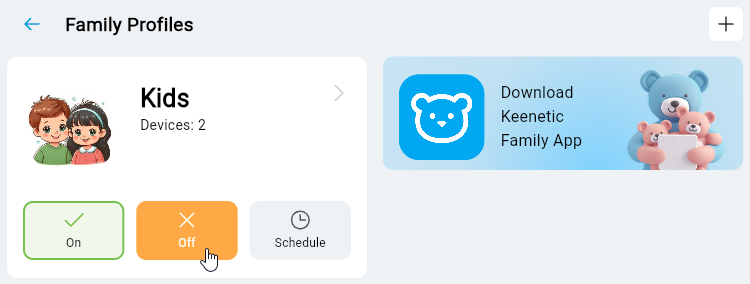
On the Family Profiles screen, you can add a new client device to a profile or remove a client device from a profile, and view activity and traffic consumption of controlled client devices. You can quickly disable Internet access for all devices in the current profile with a single switch. Tap Off to disable Internet access and tap On to enable access.
Applications
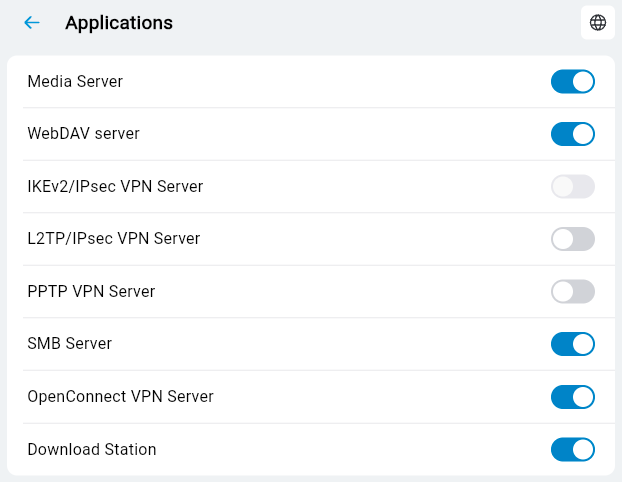
On the Applications screen, you can manage the applications installed on the Keenetic device. You can turn them off and on with a switch.
Notification settings
By clicking on Events, you can configure notifications that will allow you to receive information about events on your device in a way that is convenient for you. For example, you can receive notifications about changes in device status (online/offline) or when switching to a backup connection.

On the Notification Settings screen, specify how you want to receive notifications:
E-mail — notifications sent to your e-mail address;
Push notifications — notifications from the app on your mobile device;
Telegram — notifications in the Telegram messenger.
The Events section displays event records.
Account
On the Account screen, you can change your registration details (name and account password). To do this, click the Manage Account button, and you will be redirected to the Keenetic Account personal account website.
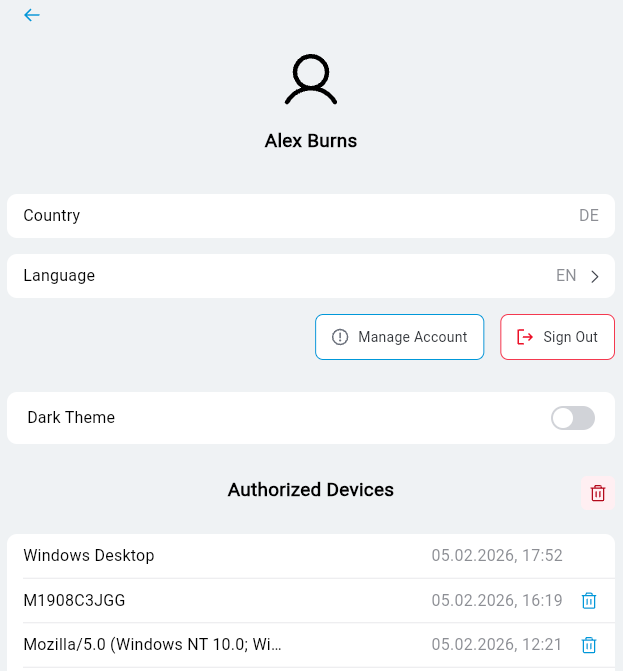
If necessary, you can change the interface language and enable the dark theme on this screen.
The Authorized Devices section displays your account login history.
Adding a manager
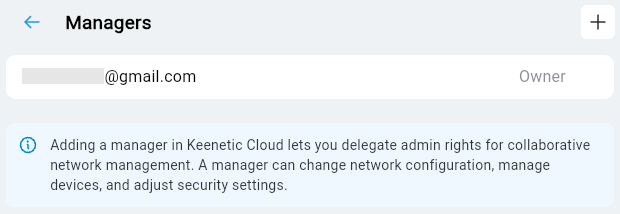
If you need to delegate administrator rights to another user, for example, for joint management of objects, you can add a manager.
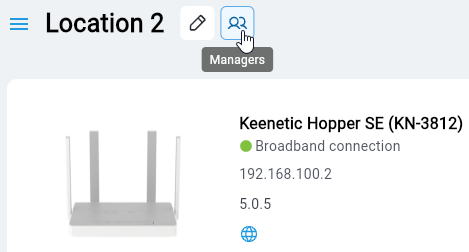
Next to the object name, click the Managers button.
Click the Add Manager button, enter the manager's e-mail address, and select the desired Site.
For more information on joint site management, see the instructions Managing a router from different accounts with the Keenetic app.